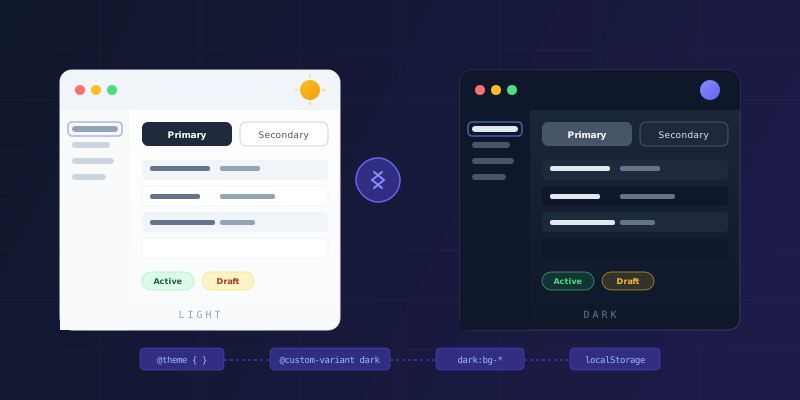
Most admin panels treat dark mode as something you bolt on at the end. You wrap the whole app in a CSS filter, invert some colors, maybe override a few background tokens, and call it done. The result usually looks like someone dragged the brightness slider down — washed out text, muddy borders, charts that turn into unreadable blobs.
When we built the admin UI for an open-source e-commerce engine, we took a different approach. Every component was designed for both themes from day one. Not "light with dark overrides," but two parallel visual languages that share the same layout and the same semantic intentions — just expressed through different palettes. Here's how that works in practice.
The Stack
The theme system rests on three things:
- Tailwind CSS v4 with its
@themedirective and@custom-variantfor class-based dark mode - React Context wrapping the entire component tree, providing
[theme, setTheme]to any component that needs it - localStorage for persistence, with a fallback to
prefers-color-schemefor first-time visitors
No CSS-in-JS. No runtime style injection. No theme provider that re-renders 200 components on toggle. The browser does the heavy lifting through plain class selectors.
Setting Up Tailwind v4's Theme Layer
Tailwind v4 replaced the old tailwind.config.js approach with CSS-native configuration. Our global stylesheet starts like this:
@import "tailwindcss";
@plugin '@tailwindcss/forms';
@plugin '@tailwindcss/typography';

@custom-variant dark (&:is(.dark *));

@theme {
  --color-blue-ribbon-50: #f7f7fe;
  --color-blue-ribbon-100: #e8e8fd;
  --color-blue-ribbon-200: #cdccfb;
  --color-blue-ribbon-300: #a6a3f7;
  --color-blue-ribbon-400: #8078f2;
  --color-blue-ribbon-500: #6358e8;
  --color-blue-ribbon-600: #5441d5;
  --color-blue-ribbon-700: #4735b5;
  --color-blue-ribbon-800: #3e2e95;
  --color-blue-ribbon-900: #313276;
}
The @custom-variant dark line is where the magic happens. Instead of using Tailwind's default prefers-color-scheme media query for dark mode, we tell it: activate the dark: variant whenever an element is a descendant of an element with the .dark class. That single line makes dark mode controllable by JavaScript — a class toggle on the <html> element, and the entire UI flips.
The @theme block registers our custom color palette as CSS custom properties. These aren't just for Tailwind to consume at build time — they're live variables in the browser, which means we can reference them in arbitrary CSS too.
The Theme Provider
On the React side, theme state lives in a Context provider that wraps the entire app:
export type Theme = 'light' | 'dark';

export const ThemeContext = createContext<
  ThemeContextType | undefined
>(undefined);

const ThemeWrapper = ({ children }) => {
  const [theme, setTheme] = useLocalStorage('theme', 'light');

  useEffect(() => {
    if (
      localStorage.theme === 'dark' ||
      (!('theme' in localStorage) &&
        window.matchMedia('(prefers-color-scheme: dark)').matches)
    ) {
      document.getElementsByTagName('html')[0]
        .classList.add('dark');
    } else {
      document.getElementsByTagName('html')[0]
        .classList.remove('dark');
    }
  }, []);

  useEffect(() => {
    if (theme === 'dark') {
      document.getElementsByTagName('html')[0]
        .classList.add('dark');
      localStorage.theme = 'dark';
    } else {
      document.getElementsByTagName('html')[0]
        .classList.remove('dark');
      localStorage.theme = 'light';
    }
  }, [theme]);

  return (
    <ThemeContext.Provider value={[theme, setTheme]}>
      {children}
    </ThemeContext.Provider>
  );
};
Two things to notice here. First, there's a double initialization pattern. The initial useEffect (with no dependency on theme) runs once on mount and checks localStorage directly — this handles the case where the user previously chose dark mode but the React state hasn't hydrated yet. Without this, you'd get a flash of light mode on every page load.
Second, the provider stores the actual state in localStorage via a custom useLocalStorage hook, and the theme effect synchronizes that state to the DOM by adding or removing the .dark class on the <html> element. The CSS does the rest — Tailwind's dark: utilities kick in the moment that class is present.
OS Preference as a Fallback
If a user visits for the first time and has never toggled anything, we respect their OS preference. The check is simple:
if (
  !('theme' in localStorage) &&
  window.matchMedia('(prefers-color-scheme: dark)').matches
) {
  document.getElementsByTagName('html')[0]
    .classList.add('dark');
}
Once they explicitly toggle, their choice persists in localStorage and overrides the OS setting. This feels right — the OS preference is a sensible default, but the user's explicit choice in this specific app should win.
The Toggle Component
The theme toggle itself is almost comically simple — a button that swaps a sun icon for a moon icon:
const ThemeToggle = () => {
  const { theme, setTheme } = useTheme();

  const handleToggleTheme = () => {
    if (theme === 'dark') setTheme('light');
    else setTheme('dark');
  };

  return (
    <button onClick={handleToggleTheme}>
      <SunIcon className={classNames(
        'w-6 h-6 text-slate-600',
        { hidden: theme === 'dark' }
      )} />
      <MoonIcon className={classNames(
        'w-6 h-6 text-yellow-200',
        { hidden: theme === 'light' }
      )} />
    </button>
  );
};
The useTheme hook is a one-liner that pulls from Context:
const useTheme = () => {
  const context = useContext(ThemeContext);
  const [theme, setTheme] = context;
  return { theme, setTheme };
};
Any component in the tree can read or change the theme. In practice, only the toggle and a few layout components ever do — the rest just respond to the CSS class.
Semantic Component Variants
This is where the approach pays off. Every interactive component defines its theme behavior as paired utility classes — light and dark side by side — organized into semantic variants. Here's the Button component:
const variantClasses = {
  primary:
    'border border-slate-800 dark:border-slate-600 '
    + 'bg-slate-800 dark:bg-slate-600 '
    + 'text-white '
    + 'hover:bg-slate-900 dark:hover:bg-slate-500 '
    + 'focus:ring-slate-800 dark:focus:ring-slate-400',

  secondary:
    'border border-slate-300 dark:border-slate-600 '
    + 'bg-white dark:bg-slate-800 '
    + 'text-slate-700 dark:text-slate-200 '
    + 'hover:bg-slate-50 dark:hover:bg-slate-700 '
    + 'focus:ring-slate-500',

  danger:
    'border border-rose-500 dark:border-rose-400 '
    + 'bg-white dark:bg-slate-800 '
    + 'text-rose-600 dark:text-rose-400 '
    + 'hover:bg-rose-50 dark:hover:bg-rose-900/10 '
    + 'focus:ring-rose-500',

  ghost:
    'bg-transparent border border-transparent '
    + 'text-slate-600 dark:text-slate-400 '
    + 'hover:text-slate-900 dark:hover:text-slate-200 '
    + 'hover:bg-slate-100 dark:hover:bg-slate-800 '
    + 'focus:ring-slate-400',

  success:
    'border border-emerald-500 dark:border-emerald-400 '
    + 'bg-white dark:bg-slate-800 '
    + 'text-emerald-600 dark:text-emerald-400 '
    + 'hover:bg-emerald-50 dark:hover:bg-emerald-900/10 '
    + 'focus:ring-emerald-500',
  // ... neutral, input, tertiary, quaternary
};
Nine variants. Each one defines border, background, text, hover, and focus ring for both themes in the same string. When a developer writes <Button variant="danger">, they don't think about dark mode at all — it's already handled.
This is what I mean by "semantic." The variant name describes the intent (primary action, destructive action, passive ghost), not the visual implementation. The same "danger" button looks different in light mode (white background, rose text, rose border) and dark mode (dark slate background, lighter rose text), but they communicate the same thing: be careful.
The Pattern Scales to Everything
This paired-utility approach isn't limited to buttons. It runs through the entire component library. Navigation items use it for active and inactive states:
// Active nav link
'text-slate-900 dark:text-slate-100 '
+ 'bg-slate-100 dark:bg-slate-800'

// Inactive nav link
'text-slate-600 dark:text-slate-400 '
+ 'hover:text-slate-900 dark:hover:text-slate-200 '
+ 'hover:bg-slate-100 dark:hover:bg-slate-800'
Form inputs carry the pattern into focus states and error indicators:
// Text input
'dark:bg-slate-900 dark:text-slate-200 '
+ 'dark:border-slate-700 '
+ 'dark:placeholder:text-slate-600 '
+ 'dark:focus:autofill dark:hover:autofill dark:autofill '
+ 'text-slate-900 border-slate-300 '
+ 'focus:ring-2 focus:ring-slate-800'
Tables alternate row colors in both themes. Badges keep their semantic meaning — a green "Active" badge in light mode becomes a softer green-on-dark in dark mode. Metric cards, modals, toast notifications — everything follows the same convention.
Dark Mode in Global CSS
Some things don't fit neatly into utility classes. Chart colors, checkbox styling, and glassmorphism effects on toast notifications live in the global CSS with explicit .dark selectors:
.dark {
  --chart-1: 220 70% 50%;
  --chart-2: 160 60% 45%;
  --chart-3: 30 80% 55%;
  --chart-4: 280 65% 60%;
  --chart-5: 340 75% 55%;
}

.dark [type='checkbox'] {
  background-color: oklch(0.279 0.041 260.031);
  border-color: oklch(0.372 0.044 257.281);
}

.dark [type='checkbox']:checked {
  background-color: oklch(0.551 0.027 264.364);
}
Notice the oklch color values. For some UI surfaces — particularly overlays and glassmorphism effects — we use perceptually uniform color spaces to ensure smooth blending. A modal backdrop in dark mode shouldn't look muddy just because you blurred it over dark content.
Why Not CSS Custom Properties for Everything?
You might wonder why we didn't go full design-token — define --bg-primary, --text-primary, --border-default and swap values based on the theme. We considered it. The problem is specificity.
With Tailwind's utility-first approach, you want utilities to compose predictably. If bg-white resolves to a CSS variable that changes meaning based on theme, you lose the ability to reason about what your styles are doing just by reading the class names. bg-white dark:bg-slate-800 is explicit: you see both states, right there in the markup. There's no indirection to trace.
This matters a lot in a codebase with many contributors. A new developer can look at any component and understand exactly what it looks like in both themes without jumping to a token definition file.
The Flash Problem
Server-rendered apps with theme toggles have a well-known problem: the page renders with the default theme, React hydrates, reads localStorage, and then applies the correct theme. For a split second, dark-mode users see a flash of white.
Our solution is the double-initialization in ThemeWrapper — the first useEffect fires on mount (before paint in most cases with Next.js) and applies the class immediately. For a more bulletproof solution, you can add a small inline script in <head> that reads localStorage before the stylesheet even loads. We opted for the React-only approach because the admin UI doesn't serve anonymous traffic — every page load is behind authentication, so the slight flash (if it even occurs) is negligible.
What We'd Do Differently
If we started today, there are two things we'd adjust. First, we'd extract the variant class maps into a shared configuration rather than defining them inline in each component. The Button has nine variants, the Badge has its own color system, the SideNav has active/inactive states — these share the same underlying palette decisions but duplicate the actual class strings.
Second, we'd consider a small abstraction for the paired-class pattern. Something like themed('bg-white', 'bg-slate-800') that generates the right Tailwind string. Not because the current approach is wrong — it's extremely readable — but because updating the slate palette across 50 components means 50 find-and-replace operations.
That said, the current approach has a real advantage: it's boring. There's no framework to learn, no special syntax, no build plugin. Any React developer who knows Tailwind can understand and modify the theme system in five minutes. For an open-source project, that's worth more than elegance.
Wrapping Up
The key insight is that dark mode isn't a filter — it's a parallel design system. Every color decision in light mode needs a corresponding decision in dark mode, and those decisions should communicate the same semantic intent. Tailwind v4's @custom-variant with class-based toggling gives you the CSS mechanics. React Context with localStorage gives you the state management. And the paired-utility pattern in components gives you the scalability.
The entire theme system is about 30 lines of React (ThemeWrapper + ThemeToggle + useTheme) and one line of Tailwind config. The real work is in the component variants — and that work pays for itself every time someone adds a new feature without having to think about dark mode separately.